How Can I Tell If My iPhone Photos Are Backed Up?
October 6, 2026
The thought that gets me is losing pictures that matter.
Not the whole camera roll. The ones you would miss.
A lot of us handle that by putting copies in more than one place. A phone. A computer. A folder we meant to tidy later. Then we forget where those copies went. They might be safe. They are still lost.
Here is the short answer. You can tell if the photos on an iPhone are in iCloud with two small checks. Look at the iCloud Photos setting on the phone. Then take one new picture and see if it shows up on a computer signed into the same Apple Account.
The setting tells you the switch is on. The photo tells you the library is actually moving. Either check can start the answer for today.
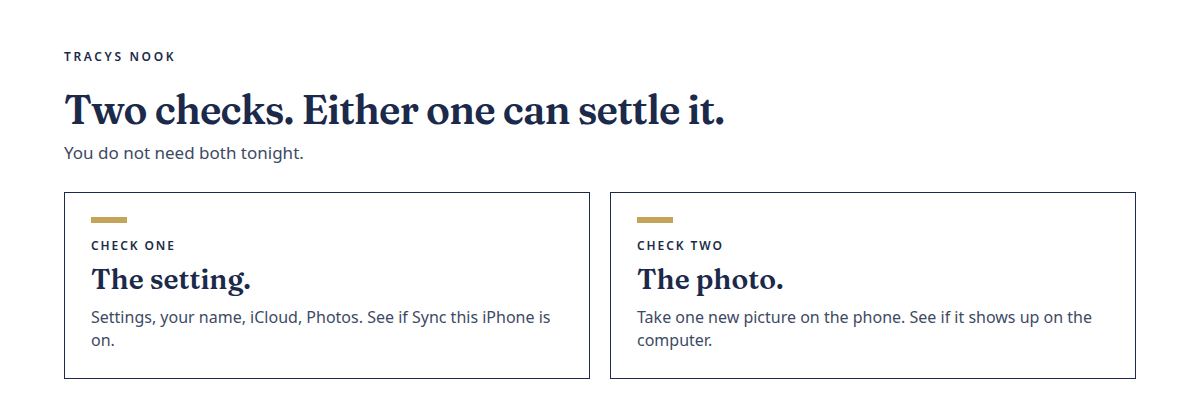
That yes is useful. It is not the same thing as a second, separate copy.
What this setting actually does
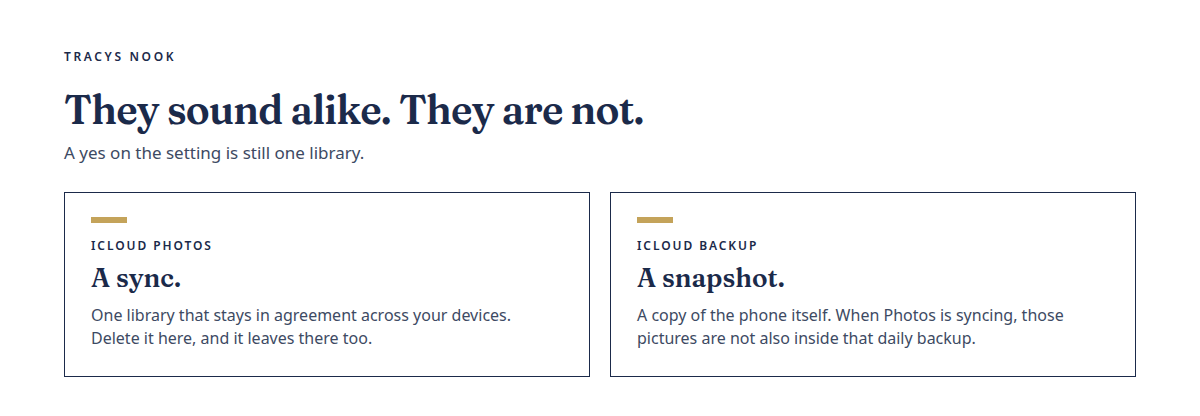
Apple has two features that sound alike and are not.
iCloud Photos keeps one photo library in agreement across your devices. Take a picture on the phone. It should appear on a Mac, a PC with iCloud for Windows, or iCloud.com, as long as you are signed into the same Apple Account and the setting is on. Change or delete a photo in that library, and the change follows the library.
iCloud Backup is different. It is a snapshot of the phone itself. When iCloud Photos is turned on, Apple does not also tuck those photos into the daily device backup. They already live in the synced library, so the backup skips them.
Both can be on at the same time. Only one of them is the photo library.
If iCloud Photos is off, some photos may still sit inside an iCloud Backup. That is a real copy of what was on the phone at backup time. It is not the same as opening Photos on another device and seeing your library.
Check 1: the setting on the phone
On the iPhone:
- Open Settings.
- Tap your name at the top.
- Tap iCloud.
- Under Saved to iCloud, find Photos. That tile already says On or Off.
- Tap Photos.
- See whether Sync this iPhone is on.
Older wording said iCloud Photos. Newer iOS uses Sync this iPhone inside Photos. Same job. The iCloud screen is enough for a first look. Off on that tile means the library on that phone is not uploading.
Turn the switch on only if you want that library in iCloud. Give it time on Wi-Fi if the library is large. Overnight is normal for a big camera roll.
Also glance at iCloud storage on that same iCloud screen. A full plan pauses new uploads. A setting that looks “on” does not help if nothing new can leave the phone.
Check 2: one new photo on another screen
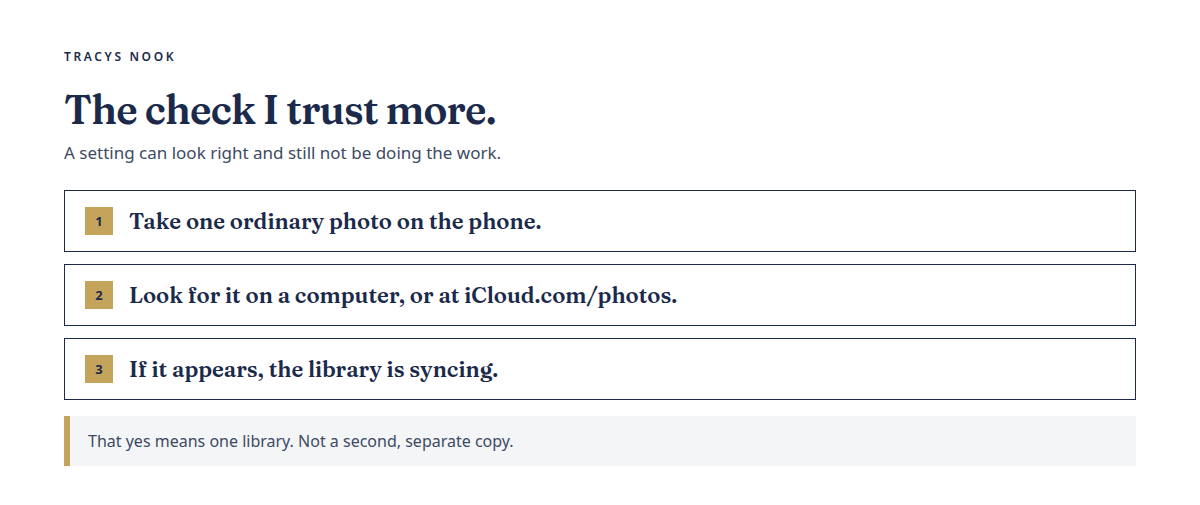
The setting can look right and still not be doing the work. This is the test I trust more.
Take one ordinary photo on the iPhone. A wall. A mug. Nothing precious.
Then look for that same photo somewhere else, signed into the same Apple Account:
- Photos on a Mac, if iCloud Photos is on there too
- iCloud.com/photos in a browser
- Photos on a PC after iCloud for Windows is set up
If the new picture appears, the library is syncing. That is the check.
If it does not appear, wait a bit on Wi-Fi, then look again. Open the Photos app on the iPhone and look at the top-right corner. Tap the profile button. Library status sits under your name. On some versions you open Collections first. On iOS 17 or earlier, open Library, tap All Photos, and scroll to the bottom for the status line.
A yellow badge means syncing is paused. A yellow warning means iCloud storage is almost full. A red mark means storage is full. Pause can also happen for power, Low Power Mode, or a weak network. A shared library can hide photos in a different view than the one you are watching.
No computer nearby? iCloud.com/photos on a tablet or a work laptop still counts, as long as you can sign in and you are careful on a shared screen. If photos do not load on the web, check Settings, your name, iCloud, then iCloud.com, and see whether Allow Data Access is on.
What a yes does not mean
Seeing the photo on a computer means the library is in sync. One library. Several doors into it.
It does not mean you have an independent backup. Delete that picture on the phone, and it leaves iCloud and the computer too, after the change syncs. A second copy in the same iCloud account is still the same copy.
Copies in three folders you cannot name later have the same problem. Safe is not the same as findable.
If the phone uses Optimize iPhone Storage, full-size originals live in iCloud and smaller versions stay on the device. That saves space. It also means the phone alone is not the place to hunt for a full-resolution file if iCloud is the only other copy.
One small thing to do today
Pick one check.
Either open Settings and look at Photos under iCloud. Or take one new picture and see if it shows up on another screen.
You do not need both tonight. One honest answer is enough to stop guessing.
If the setting is off and you want iCloud Photos, turn Sync this iPhone on, leave the phone on Wi-Fi, and look again tomorrow.
If the setting is on and the test photo never arrives, the status line in Photos is the next place to look. Storage, Wi-Fi, and a paused upload are the usual reasons. Not a personal failing.
Close
You were not careless for not knowing. Most people assume iCloud is handling the pictures and never watch one photo make the trip.
Watch one photo make the trip. That is the whole job for today.
The pictures that matter get a little less heavy when you can point to where they are.
If you want help building a second copy that does not live in the same iCloud library, Backup and Recovery Systems walks through that without turning it into an IT project. The free check above stands on its own either way.
Be the first to comment